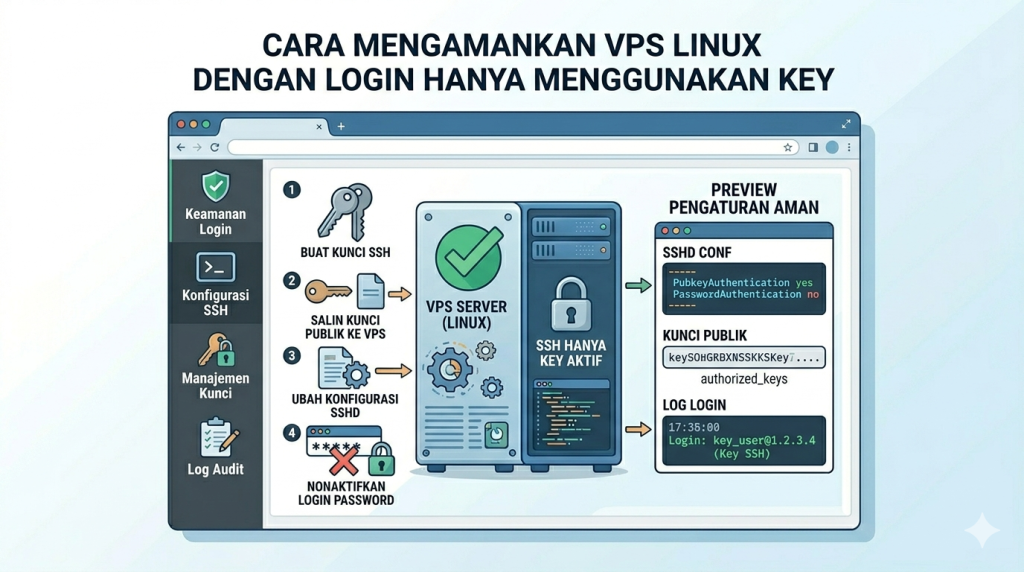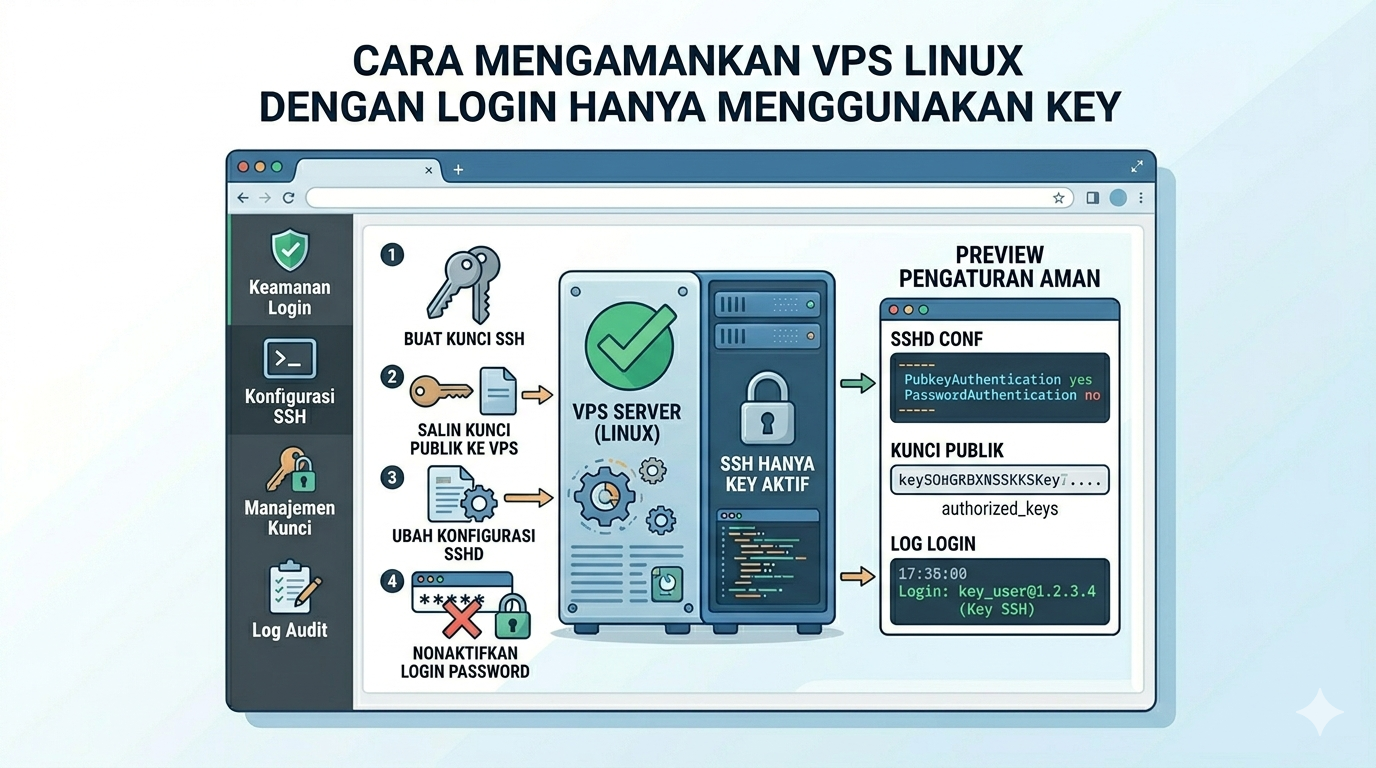

Berikut langkah lengkap untuk mengamankan SSH hanya pakai key (tanpa password) + memindahkan public key ke user tujuan di VPS kamu.
🔐 1. Generate SSH Key di komputer lokal
Jalankan di PC/Laptop kamu (bukan di VPS):
ssh-keygen -t ed25519 -C "mabdullah-vps"
Kalau diminta lokasi:
- Enter saja (default:
~/.ssh/id_ed25519) - Isi passphrase (opsional tapi disarankan)
Hasilnya:
- Private key →
id_ed25519(JANGAN dibagikan) - Public key →
id_ed25519.pub
📤 2. Kirim Public Key ke VPS
Cara paling mudah:
ssh-copy-id user@ip-vps
Contoh:
ssh-copy-id root@192.168.1.10
🔧 Jika ssh-copy-id tidak bisa:
Manual:
cat ~/.ssh/id_ed25519.pub | ssh user@ip-vps "mkdir -p ~/.ssh && chmod 700 ~/.ssh && cat >> ~/.ssh/authorized_keys"
👤 3. Pindahkan key ke user tertentu (bukan root)
Misalnya kamu mau pakai user: abdullah
Login ke VPS:
ssh root@ip-vps
Buat user (kalau belum ada):
adduser abdullah
Copy key dari root ke user:
mkdir -p /home/abdullah/.ssh
cp /root/.ssh/authorized_keys /home/abdullah/.ssh/
chown -R abdullah:abdullah /home/abdullah/.ssh
chmod 700 /home/abdullah/.ssh
chmod 600 /home/abdullah/.ssh/authorized_keys
⚙️ 4. Konfigurasi SSH (Disable Password Login)
Edit config SSH:
nano /etc/ssh/sshd_config
Ubah / pastikan seperti ini:
PasswordAuthentication no
ChallengeResponseAuthentication no
KbdInteractiveAuthentication no
PubkeyAuthentication yes
PermitRootLogin prohibit-password
(Optional tapi bagus):
UsePAM no
Jika Menggunakan VPS/VM cloudinit (Proxmox) harus masuk ke
cd /etc/ssh/sshd_config.dsebagai contoh nanti ada file seperti gambar di bawah ini

edit isi file tersebut dari PasswordAuthentication yes menjadi PasswordAuthentication no
🔁 5. Restart SSH
systemctl restart ssh
atau:
systemctl restart sshd
⚠️ 6. TEST DULU (WAJIB!)
JANGAN logout dulu!
Buka terminal baru, coba login:
ssh abdullah@ip-vps
Kalau berhasil tanpa password → aman ✅
❌ 7. Hapus akses password (opsional tambahan)
Kalau mau lebih aman:
passwd -l abdullah
🚨 Masalah yang sering terjadi
❌ Permission salah
Harus:
chmod 700 ~/.ssh
chmod 600 ~/.ssh/authorized_keys
❌ Error: Server refused our key
Biasanya karena:
- Permission salah
- Key belum masuk ke
authorized_keys - User salah
❌ Error: No supported authentication methods available
Artinya:
- Password sudah dimatikan
- Tapi key belum terbaca
👉 Solusi:
- Pastikan key sudah benar di
~/.ssh/authorized_keys - Cek isi file:
cat ~/.ssh/authorized_keys